Multiple Reports in Document
Multiple Reports in Same Document
Multiple, separate Reports can be added to the same Document. Each Report within a Document can be completely unique and independent of the other with unique data or they can share the data passed in at layout time.
Adding a New Report
To add a Report to a Document, right click on the blue “Document” tab to the left of your existing Report and click “Add Report” (see Figure 1). By default, new Reports are always added as the last Report of the Document. Changing the report’s order in the Document is explained below.
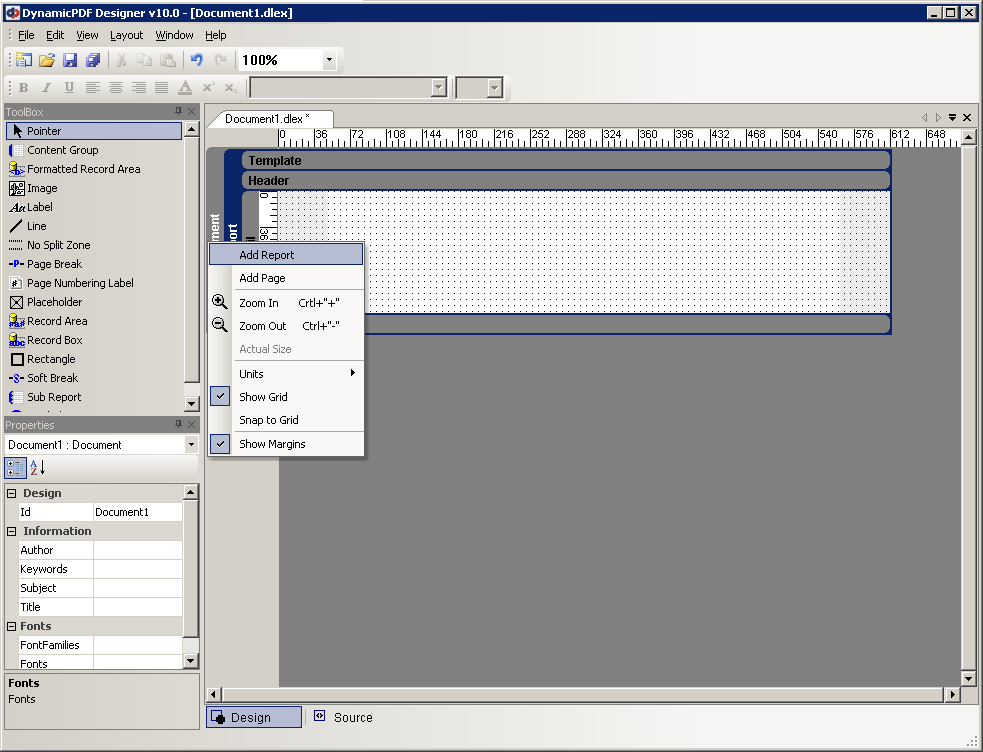
Figure 1 – Adding a New Report to a Document
Changing a Report's Position or Removing a Report
A new Report is always added to the end of the Document.
To change the position of the report,
- right-click on the Report’s blue tab on the left edge of the Design screen.
- Click “Move Up” to move the Report one level higher in the Document or click "Move Down" to move the report one level lower in the document
Alternatively, Reports can be dragged and dropped into position. Click and hold on the blue Report tab on the left side of the Design layout the Report can then be dragged up or down into the correct position.
To remove the report from the document click “Remove Report”.